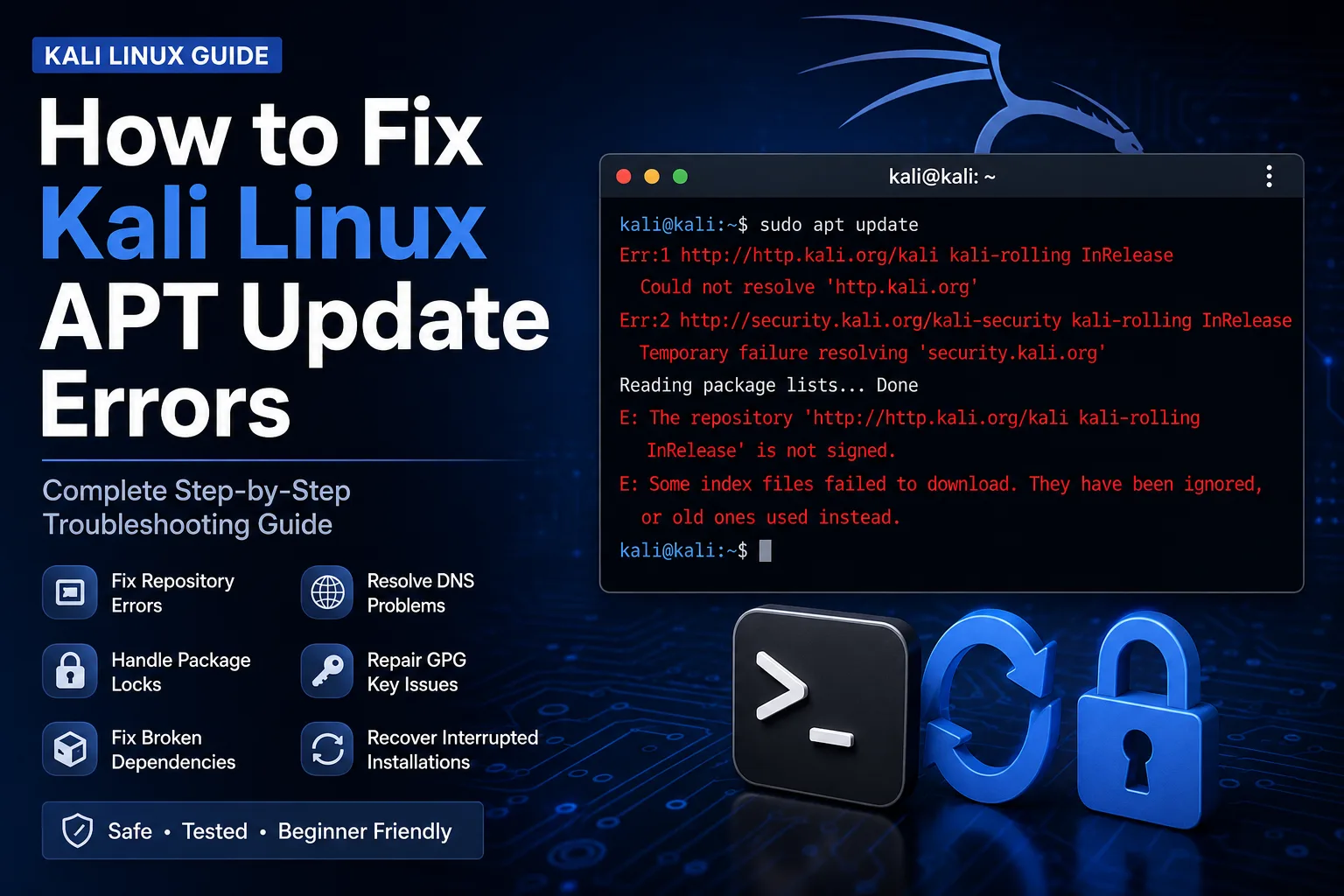
Why Kali Linux APT Errors Happen
Kali Linux uses APT to install, update, and manage system packages. Because Kali is a rolling distribution, package repositories and dependencies change continuously, so an update can occasionally fail.
The cause is usually specific: a repository configuration problem, network or DNS failure, an active APT process, an interrupted package operation, a missing or outdated signing key, or a dependency conflict.
The safest troubleshooting method is to identify the exact error first and then apply the smallest appropriate fix.
Before You Change Anything
Do not immediately delete APT lock files, replace repository files, or run aggressive cleanup commands. First capture the complete error and determine whether the problem is networking, repositories, locks, package configuration, or cryptographic verification.
- Copy the complete terminal error instead of only the final line.
- Check your network connection before changing APT configuration.
- Do not mix Debian, Ubuntu, or random third-party repositories into a Kali installation.
- Back up configuration files before making manual changes.
Step 1: Check Network and DNS Connectivity
Errors such as Temporary failure resolving or Failed to fetch can indicate that Kali cannot reach a repository or resolve its hostname.
ping -c 4 1.1.1.1
ping -c 4 http.kali.org
How to Interpret the Network Test
- If 1.1.1.1 responds but http.kali.org does not, investigate DNS resolution.
- If both tests fail, check your network connection, VPN, virtual machine networking, firewall, or gateway.
- If both work but APT still fails, continue with the repository and package checks below.
Step 2: Check the Kali Repository Configuration
A wrong, duplicated, obsolete, or third-party repository can prevent APT from updating. Current Kali releases use a deb822 repository file named kali.sources under /etc/apt/sources.list.d/.
For Kali 2026.2 and newer installations, the normal rolling repository configuration uses http.kali.org as the mirror, kali-rolling as the suite, the standard Kali components, and the Kali archive keyring for signature verification.
cat /etc/apt/sources.list.d/kali.sources
cat /etc/apt/sources.list
What the Current Kali Rolling Source Should Look Like
A standard current Kali rolling installation should have the official Kali repository configuration rather than unrelated Debian or Ubuntu repositories.
Types: deb
URIs: http://http.kali.org/kali/
Suites: kali-rolling
Components: main contrib non-free non-free-firmware
Signed-By: /usr/share/keyrings/kali-archive-keyring.gpg
Important: Do Not Mix Debian or Ubuntu Repositories
Adding Debian or Ubuntu repositories to Kali can create package conflicts and can break the installation. Keep the Kali operating-system repository separate from any additional software repositories.
Step 3: Fix APT Lock Errors Safely
If APT reports an error such as Could not get lock or Resource temporarily unavailable, another package-management process may currently be using the database.
ps aux | grep -E '[a]pt|[d]pkg'
sudo lsof /var/lib/dpkg/lock-frontend
Do Not Delete an Active Lock
An APT or dpkg lock is normally a protection mechanism. If another package operation is genuinely running, allow it to finish. Only investigate stale locks after confirming that no package-management process is active.
If a package operation was interrupted and no active APT or dpkg process remains, complete pending configuration before trying another installation.
sudo dpkg --configure -aStep 4: Repair Interrupted or Broken Packages
Interrupted package configuration can leave the system in a partially configured state. The following commands are useful after confirming that no other package operation is running.
sudo dpkg --configure -a
sudo apt --fix-broken install
Step 5: Fix GPG and Repository Signature Errors
Errors containing NO_PUBKEY, EXPKEYSIG, Missing key, or repository signature verification failures usually indicate that APT cannot validate the repository metadata with the local Kali archive signing key.
First make sure the system is using the official Kali keyring. On systems that can reach the repository, reinstalling or upgrading kali-archive-keyring is the preferred approach.
sudo apt update
sudo apt install --reinstall kali-archive-keyring
When the Kali Signing Key Is Expired or Missing
If APT cannot update because the signing key itself is unavailable or expired, use Kali's official signing-key recovery procedure rather than importing arbitrary keys from unrelated key servers.
The current Kali documentation provides an official archive keyring recovery path for these cases.
Step 6: Clean Stale Package Metadata
If repository metadata appears corrupted or repeatedly fails to download, clearing the cached package lists can force APT to fetch fresh indexes.
sudo rm -rf /var/lib/apt/lists/*
sudo apt update
Step 7: Update Kali After the Problem Is Fixed
Once networking, repositories, package configuration, and signing keys are healthy, update the package lists and perform the normal Kali upgrade.
sudo apt update
sudo apt full-upgrade -y
Quick Troubleshooting Checklist
- Can Kali reach 1.1.1.1?
- Can Kali resolve http.kali.org?
- Is the official Kali repository configured correctly?
- Are any APT or dpkg processes currently running?
- Did an earlier package operation stop unexpectedly?
- Is kali-archive-keyring current?
- Is the root filesystem low on disk space?
- Are third-party Debian or Ubuntu repositories present?
Common APT Errors and What They Usually Mean
- Temporary failure resolving — usually a DNS or network-resolution problem.
- Failed to fetch — check connectivity, repository configuration, and mirror availability.
- Could not get lock — another APT or dpkg process may be using the package database.
- NO_PUBKEY or EXPKEYSIG — the repository signing key is missing, expired, or otherwise unavailable.
- Unmet dependencies — packages have incompatible or incomplete dependency states.
- dpkg was interrupted — finish pending package configuration with dpkg --configure -a.
Frequently Asked Questions
Can I use Ubuntu or Debian repositories on Kali? No. Mixing operating-system repositories can cause serious package conflicts.
Should I delete APT lock files when I see a lock error? Not while an APT or dpkg process is active. First identify what owns the lock.
Should I use apt upgrade or apt full-upgrade? Kali's official updating guidance uses apt update followed by apt full-upgrade for a normal full system update.
Why do old Kali installations sometimes show GPG key errors? Kali's repository signing keys are rotated periodically, so older installations may need an updated kali-archive-keyring or the official key recovery procedure.
Final Takeaway
Most Kali Linux APT failures become much easier to solve once the exact error is classified. Start with connectivity, verify the official repository configuration, check for active package-manager locks, repair interrupted package state, and then address GPG or dependency problems.
Avoid random repository changes and destructive cleanup commands until you know what is actually causing the failure. A methodical diagnosis is safer than repeatedly running unrelated fixes.