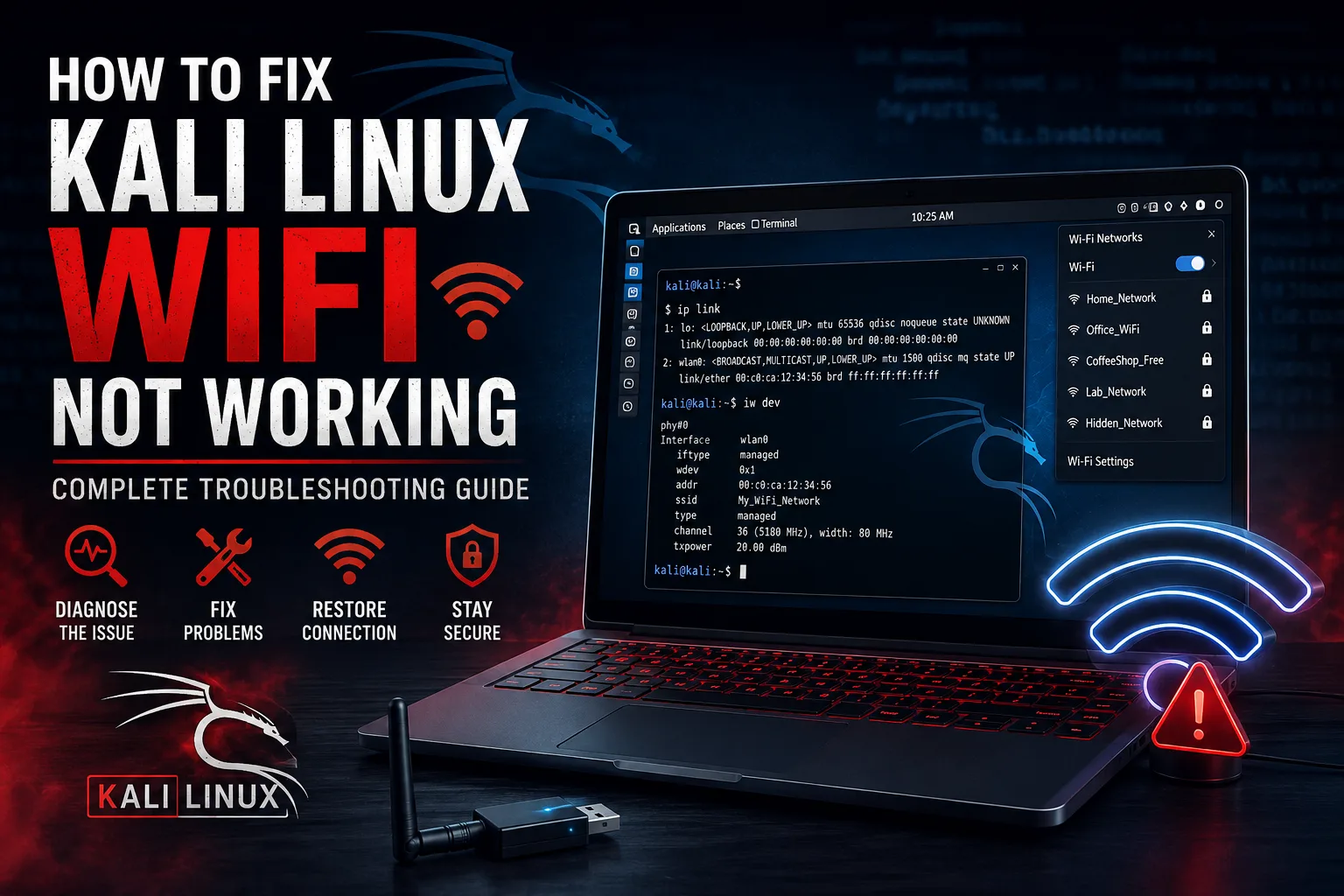
# How to Fix Kali Linux WiFi Not Working: Complete Troubleshooting Guide
Wireless connectivity issues are among the most common friction points for new and intermediate Kali Linux users. Because Kali Linux is a specialized Debian-based distribution tailored for security testing, digital forensics, and penetration testing, its network management, hardware initialization, and default service states differ significantly from everyday desktop operating systems like Windows, macOS, or Ubuntu.
When wireless connectivity fails in Kali Linux, the root cause varies widely. The issue might stem from:
Blindly executing installation scripts or installing random third-party drivers from online forums often breaks system packages or corrupts kernel modules. The most efficient and safe path to a working wireless setup is a structured diagnostic workflow: **identify the failure layer first, then apply the targeted resolution.**
- A physical USB passthrough issue inside a virtual machine (VM)
- A software or hardware radio lock (`rfkill`)
- A missing proprietary firmware blob (e.g., Realtek, Broadcom, or Intel)
- An unmanaged interface state within NetworkManager
- An uninitialized network interface (`wlan0` / `wlan1`)
First: Identify What Is Actually Broken
Before changing configuration files or attempting driver compilations, you must determine at which layer of the networking stack the failure occurs. Wireless networking operates in distinct stages:
1. **Hardware Detection Layer:** Does the operating system detect the physical PCI or USB wireless adapter?
2. **Radio State Layer:** Is the wireless transmitter blocked at the hardware or kernel level (`rfkill`)?
3. **Interface Layer:** Has the Linux kernel created a network interface (e.g., `wlan0`, `wlan1`, or a predictable interface name like `wlp2s0`), and is that interface powered `UP`?
4. **Management Layer:** Is NetworkManager actively managing the wireless interface?
5. **Association Layer:** Can the wireless interface scan, discover, and authenticate with local access points (APs)?
6. **Protocol & Routing Layer:** Once associated with a network, can the adapter obtain an IP address via DHCP and resolve public hostnames through DNS?
Safe Diagnostic Commands
Run these non-destructive diagnostic commands in your Kali terminal to assess your system state:
Bash
Bash
Bash
Bash
- **What it does:** Displays all network interfaces recognized by the Linux kernel, including their operational states (`UP`, `DOWN`, or `UNKNOWN`), MAC addresses, and maximum transmission units (MTUs).
- **Expected Output:** You should see a loopback interface (`lo`), an Ethernet interface (e.g., `eth0` or `enp0s3`), and a wireless interface (e.g., `wlan0` or `wlp2s0`). If no wireless interface is listed, the kernel has either not detected the hardware or lacks the required kernel driver/firmware.
- **What it does:** Lists wireless devices managed by the `nl80211` driver framework, showing interface names, physical device numbers (`phy#`), type (e.g., `managed` or `monitor`), and current operating channel/frequency.
- **Expected Output:** Shows detailed wireless-specific interface details. If this command returns no output, no active wireless driver is attached to a recognized wireless device.
- **What it does:** Queries the kernel’s subsystem for soft and hard wireless blocks on Bluetooth and Wi-Fi radios.
- **Expected Output:** Displays each radio device with two flags: `Soft blocked` (controlled via software settings) and `Hard blocked` (controlled via a physical button, keyboard Fn switch, or BIOS setting).
- **What it does:** Queries NetworkManager to see the state of each network device (`connected`, `disconnected`, `unmanaged`, or `unavailable`).
- **Expected Output:** Helps confirm whether NetworkManager sees your wireless adapter and whether it is actively managing it or marking it as `unavailable`.
nmcli device status
Step 1: Check Whether Kali Detects the WiFi Adapter
If `ip link` does not list a wireless interface (such as `wlan0`), you must determine whether the underlying hardware is visible to the operating system at the bus level.
Checking PCI Wireless Adapters (Internal Cards)
Internal Wi-Fi cards connected directly to your motherboard (common in laptops) communicate over the PCI/PCIe bus.
Bash
or
Bash
- **What it does:** Lists PCI bus devices filtered for network or wireless controllers. The `-nn` flag displays both textual names and raw vendor/product PCI ID codes (e.g., `[8086:2723]`).
- **Interpretation:**
- If the output shows a device (e.g., `Intel Corporation Wi-Fi 6 AX200 [8086:2723]`), Kali's hardware bus sees the physical card. The failure is strictly driver-, firmware-, or configuration-related.
- If the output returns nothing, the physical card may be loose, disabled in the computer's BIOS/UEFI settings, or broken at the hardware level.
lspci -nn | grep -i wireless
Checking USB Wireless Adapters
External USB Wi-Fi dongles (frequently used for wireless penetration testing to support monitor mode and packet injection) communicate over the USB bus.
Bash
- **What it does:** Queries the USB bus and prints all connected devices alongside their numeric Vendor ID and Product ID pairs (e.g., `ID 0e8d:7610 MediaTek Corp.`).
- **Interpretation:**
- If your USB adapter appears in the output, Kali sees the hardware connection.
- If your USB adapter does not appear in `lsusb`, check the physical USB port, test a different port, or confirm that your virtual machine host has properly routed the USB device to Kali (see Step 7).
lsusb
Step 2: Check rfkill and Wireless Blocking
Even when Kali detects the physical adapter and loads the driver, the wireless radio cannot transmit signals if it is blocked by `rfkill`.
Inspecting Block States
Run:
Bash
Look closely at the output for your wireless device:
Plaintext
- **Soft Blocked (****`yes`****):** The kernel or an operating system utility has disabled the radio via software.
- **Hard Blocked (****`yes`****):** A physical switch on the laptop chassis, a key combination (such as `Fn + F2`), or a hardware-level BIOS setting has cut power to the wireless radio.
0: phy0: Wireless LAN
	Soft blocked: yes
	Hard blocked: no
Unblocking Software Blocks (Safe Command)
If `Soft blocked` shows `yes`, unblock all wireless radios with:
Bash
> **Note on Hard Blocks:** If `Hard blocked` shows `yes`, software commands like `sudo rfkill unblock all` **cannot** override the physical switch. You must locate the physical toggle on your device, press your laptop’s dedicated Wi-Fi function key combination, or verify that Wi-Fi/WLAN is enabled in your BIOS/UEFI configuration menu.
- **What it does:** Sends a command to the Linux kernel to clear software block flags for Wi-Fi transmitters.
- **Verification:** Re-run `rfkill list all` to confirm that `Soft blocked` now reads `no`.
sudo rfkill unblock wifi
Step 3: Check the Wireless Interface
Modern Linux distributions, including Kali Linux, utilize predictable network interface naming schemes based on hardware location (e.g., `wlp2s0`, `wlx00c0ca965cbd`) alongside traditional names like `wlan0` or `wlan1`.
Verifying Interface State
Run:
Bash
Inspect the output block corresponding to your wireless interface:
Plaintext
If the state reads `DOWN`, the interface exists, but its software administrative state is disabled.
3: wlan0: <BROADCAST,MULTICAST> mtu 1500 qdisc noop state DOWN mode DEFAULT group default qlen 1000
    link/ether 00:c0:ca:96:5c:bd brd ff:ff:ff:ff:ff:ff
Safe Method to Bring the Interface UP
To bring the interface into an active (`UP`) state:
Bash
*(Replace* *`wlan0`* *with your exact interface name if different, such as* *`wlp2s0`**.)*
- **What it does:** Issues an administrative request to activate the network interface.
- **Expected Output:** If successful, this command executes silently without errors. Re-running `ip link show wlan0` should now display `<BROADCAST,MULTICAST,UP,LOWER_UP>` and `state UP`.
sudo ip link set wlan0 up
Troubleshooting Interface Activation Errors
If running `sudo ip link set wlan0 up` produces an error like:
- `RTNETLINK answers: Operation not possible due to RF-kill`: Return to Step 2; your radio is still soft- or hard-blocked.
- `RTNETLINK answers: No such file or directory`: The system is missing the required firmware binary file required to boot the card's onboard processor (see Step 5).
Step 4: Check NetworkManager
Kali Linux uses **NetworkManager** as its default desktop service to handle network discovery, Wi-Fi authentication, and auto-configuration. If NetworkManager is stopped, misconfigured, or ignoring your interface, Wi-Fi networks will not appear in your desktop tray.
Diagnosing Device Status in NetworkManager
Run:
Bash
Examine the output line for your wireless device:
| DEVICETYPESTATECONNECTION | | | |
| ------------------------- | ------ | -------------- | ---- |
| `wlan0` | `wifi` | `disconnected` | `--` |
| `wlan0` | `wifi` | `unavailable` | `--` |
| `wlan0` | `wifi` | `unmanaged` | `--` |
- **`disconnected`****:** Normal state. NetworkManager sees the card, and it is ready to scan or connect.
- **`unavailable`****:** The card driver is loaded, but the device cannot operate (usually caused by an `rfkill` block, a missing firmware file, or an interface that is administratively `DOWN`).
- **`unmanaged`****:** NetworkManager is explicitly configured to ignore this interface.
nmcli device status
Resolving "unmanaged" State
If NetworkManager marks your device as `unmanaged`, inspect `/etc/NetworkManager/NetworkManager.conf`:
Bash
Check the `[ifupdown]` block:
Ini, TOML
If `managed=false` is set, change it to `managed=true` using a text editor with root privileges (e.g., `sudo nano /etc/NetworkManager/NetworkManager.conf`).
Alternatively, verify that the interface is not listed in `/etc/network/interfaces`. NetworkManager automatically ignores interfaces explicitly declared in `/etc/network/interfaces`. For standard desktop Wi-Fi usage managed via the GUI, `/etc/network/interfaces` should generally only contain entries for the loopback interface (`lo`).
[ifupdown]
managed=false
Restarting NetworkManager
Restart the NetworkManager service to apply changes or refresh stuck network stacks:
Bash
- **Warning:** Restarting NetworkManager temporarily drops active network connections. Avoid doing this during active remote sessions (such as SSH) over the same connection.
sudo systemctl restart NetworkManager
Step 5: Check the WiFi Driver and Firmware
A very common cause of Wi-Fi failure in Kali Linux is the difference between a **kernel driver** (which tells Linux how to talk to the card's controller) and **hardware firmware** (microcode that must be loaded directly onto the wireless card's onboard chip to operate).
> **Crucial Warning:** Wi-Fi chipsets vary widely across hardware vendors (Intel, Realtek, Atheros, Broadcom, MediaTek). **There is no single driver command that fixes all Kali Wi-Fi issues.** Installing random drivers from GitHub without matching your specific hardware chipset can cause kernel panics, system crashes, or broken dependency chains.
Identifying Your Exact Chipset and Driver
Run `dmesg` filtered for wireless and firmware warnings:
Bash
Next, inspect the kernel module attached to your hardware:
Bash
or inspect driver details using `ethtool`:
Bash
- **What it does:** Searches the kernel ring buffer logs created during bootup.
- **What to look for:** Look for specific lines indicating missing firmware files, such as: `firmware: failed to load rtlwifi/rtl8821aefirmware.bin (-2)`
- **Expected Output:** Shows the active `driver` (e.g., `driver: iwlwifi`, `driver: rtl8821ae`, or `driver: ath9k`).
sudo ethtool -i wlan0
Firmware Package Solutions by Chipset Vendor
Once you identify your vendor and chipset, install or reinstall the official non-free firmware metapackage from the standard Kali repositories.
First, update your package list (requires a temporary wired/ethernet connection or internet access):
Bash
Install the appropriate firmware package for your specific hardware:
Bash
1.
1. **Realtek Wireless Cards:**
Bash
2.
1. **Atheros / Qualcomm Cards:**
Bash
2.
1. **Broadcom Cards:**
Bash
2.
*(Note: Certain legacy Broadcom chipsets require* *`broadcom-sta-dkms`* *instead).*
1. **MediaTek / Ralink Cards:**
Bash
-
After installing firmware, reload your kernel modules or reboot your system:
Bash
- **Intel Wireless Cards:**
sudo reboot
Step 6: Kali Linux WiFi Not Showing Networks
If your wireless interface is detected, powered `UP`, and managed by NetworkManager, but clicking the tray icon shows no available Wi-Fi access points, work through these troubleshooting checks:
1. Perform a Manual Wireless Scan
Force the card to issue probe requests and scan for nearby networks:
Bash
- **Interpretation:**
- If this command prints a list of SSIDs (`SSID: HomeNetwork`, `SSID: OfficeWiFi`), your card, driver, and firmware are functioning properly. The issue lies within NetworkManager's GUI or service layer.
- If the scan returns `command failed: Device or resource busy (-16)`, another process (like `airmon-ng` or `wpa_supplicant`) has locked the interface.
sudo iw dev wlan0 scan | grep SSID
2. Check for Leftover Monitor Mode or Process Locks
If you previously used penetration testing utilities like `airmon-ng` or `airodump-ng`, your wireless card may still be in **Monitor Mode** or blocked by conflicting background processes.
Run the diagnostic check:
Bash
To stop conflicting processes and return the card to normal **Managed Mode**:
Bash
*(If your interface was renamed to* *`wlan0mon`**, run* *`sudo airmon-ng stop wlan0mon`* *to restore standard managed mode).*
sudo airmon-ng check kill
sudo iw dev wlan0mon set type managed
3. Check Regulatory Domain Settings
Wireless spectrum channels (especially on 5 GHz bands) vary by country. If your regulatory domain is unset, the driver may restrict channel scanning to safe legacy 2.4 GHz channels.
Inspect your current regulatory domain:
Bash
Set your regulatory domain to your two-letter ISO country code (e.g., `US`, `GB`, `DE`, `CA`):
Bash
sudo iw reg set US
4. 2.4 GHz vs. 5 GHz Band Compatibility
Older or low-cost USB wireless adapters (such as those based on the legacy Realtek RTL8187 or RT5370 chipsets) support **only 2.4 GHz** (802.11b/g/n) frequencies. If your local router broadcasts exclusively on a 5 GHz or 6 GHz band, a 2.4 GHz-only adapter cannot detect or connect to the network.
Step 7: WiFi Works on Host but Not in VirtualBox/VMware
A major source of confusion for beginners running Kali Linux inside a Virtual Machine (VirtualBox, VMware Workstation, or Hyper-V) is how virtualization handles host networking hardware.
       +-------------------------------------------------------+
       |                       HOST OS                         |
       |  (Windows / macOS / Ubuntu Linux)                     |
       |                                                       |
       |  [ Built-in Laptop PCI Wi-Fi Card ]                   |
       |                   │                                   |
       |                   ▼                                   |
       |      Host Wi-Fi Network Connection                    |
       |                   │                                   |
       |  ┌────────────────┴─────────────────────────────┐  |
       |  │  Hypervisor (VirtualBox / VMware)            │  |
       |  │  Emulated Virtual NAT / Bridged Adapter      │  |
       |  └────────────────┬─────────────────────────────┘  |
       +───────────────────┼────────────────────────────────---+
                           │
                           ▼
              +-------------------------+
              |      GUEST OS           |
              |     (Kali Linux)        |
              |                         |
              |  Sees: eth0 (Ethernet)  |
              |  Sees: NO wlan0         |
              +-------------------------+
The Fundamental Rule of Virtualized Wi-Fi
1. **Virtual Machines Emulate Ethernet:** By default, hypervisors pass the host's internet connection to the virtual machine as a **virtual wired Ethernet adapter** (`eth0` or `ens33`).
2. **Built-in Laptop PCI Wi-Fi Cards Cannot Be Passed Directly to a VM:** A virtual machine **cannot** see your laptop’s internal PCI/PCIe Wi-Fi card as a native wireless `wlan0` interface. From Kali's perspective, it is connected to a wired virtual switch.
3. **USB Wi-Fi Passthrough is Required for Native Wi-Fi Access:** To perform wireless scanning, monitor mode, or native Wi-Fi connections inside a VM, you **must use an external USB Wi-Fi adapter** connected directly to the guest OS via USB passthrough.
Correctly Configuring USB Passthrough
If you have attached an external USB Wi-Fi adapter to your host machine:
In Oracle VM VirtualBox:
1. Ensure the **VirtualBox Extension Pack** is installed on your host (enables USB 2.0 and USB 3.0 controller support).
2. Open VM Settings → **USB**.
3. Check **Enable USB Controller** and select **USB 3.0 (xHCI) Controller**.
4. Click the **Add New USB Filter** icon (+) and select your wireless adapter from the list (e.g., `Realtek 802.11n NIC` or `Ralink 802.11n`).
5. Boot Kali Linux, attach the USB adapter, and check `lsusb` in Kali.
In VMware Workstation / Player:
1. Boot your Kali Linux VM.
2. In the top VMware menu, click **VM** → **Removable Devices**.
3. Locate your external USB Wi-Fi adapter.
4. Click **Connect (Disconnect from host)**.
Once passed through, run `lsusb` and `ip link` inside Kali to confirm that `wlan0` appears.
Step 8: WiFi Connects but Internet Does Not Work
If NetworkManager indicates that you are connected to a Wi-Fi access point, but web browsers fail to load pages and packet routing fails, systematically test each layer of connectivity.
1. Test Local Loopback and Local Interface
Ensure your network stack can communicate locally:
Bash
ping -c 3 127.0.0.1
2. Verify Assigned IP Address
Check if your wireless interface received a valid IPv4 address from the router via DHCP:
Bash
- **Interpretation:** Look for a line starting with `inet` (e.g., `inet 192.168.1.105/24`). If you see a self-assigned IP address in the `169.254.x.x` range, the Wi-Fi connection succeeded, but the DHCP lease request failed.
ip addr show wlan0
3. Test Local Gateway Reachability
Find your network's default gateway (your local router's IP address):
Bash
*Example Output:* `default via 192.168.1.1 dev wlan0 proto dhcp metric 600`
Ping your router directly:
Bash
- **Failure:** If pinging `192.168.1.1` fails, your wireless connection is dropping packets at the local link layer or blocking traffic via local firewall rules.
ping -c 3 192.168.1.1
4. Test Public IP Connectivity (Bypass DNS)
Ping a public IP address directly to test raw Internet ICMP routing without relying on domain name resolution:
Bash
- **Success:** If pinging `1.1.1.1` works, your internet routing is functional. The failure is strictly at the **DNS resolution layer**.
- **Failure:** If pinging `1.1.1.1` fails (`Destination Host Unreachable`), check your default route table with `ip route`.
ping -c 3 1.1.1.1
5. Test DNS Resolution
Ping a public domain name:
Bash
If pinging `1.1.1.1` succeeds but pinging `kali.org` returns `Name or service not known` or `Temporary failure in name resolution`, your DNS resolver configuration is missing or broken.
ping -c 3 kali.org
Quick DNS Fix:
Temporarily configure a public DNS resolver (such as Cloudflare or Google DNS) in `/etc/resolv.conf`:
Bash
To make DNS changes permanent in NetworkManager, edit your active connection settings or update `/etc/NetworkManager/NetworkManager.conf` to handle DNS resolution via `systemd-resolved` or static nameservers.
sudo sh -c 'echo "nameserver 1.1.1.1" > /etc/resolv.conf'
Step 9: Common Kali WiFi Errors and What They Mean
Use this diagnostic reference table to match specific error symptoms to their root causes and verified solutions:
| Error / SymptomLikely CauseDiagnostic CommandVerified Solution | | | |
| -------------------------------------------------------------- | -------------------------------------------------------------------- | -------------------------------- | ----------------------------------------------------------------------------- |
| **`wlan0`** **interface not found** | Driver missing, card unpowered, or VM host retaining device control. | `ip link`, `lsusb`, `lspci` | Install vendor firmware; or route USB device to VM (Step 1 & 7). |
| **`Operation not possible due to RF-kill`** | Wireless transmitter is software- or hardware-blocked. | `rfkill list all` | Run `sudo rfkill unblock wifi`. Toggle physical Wi-Fi switch if hard-blocked. |
| **`SIOCSIFFLAGS: Operation not permitted`** | Missing proprietary firmware microcode in the kernel. | `sudo dmesg \| grep -i firmware` | Install appropriate `firmware-<vendor>` package (Step 5). |
| **Device status shows** **`unmanaged`** | NetworkManager configured to ignore the interface. | `nmcli device status` | Set `managed=true` in `/etc/NetworkManager/NetworkManager.conf`. |
| **Device status shows** **`unavailable`** | Radio blocked, interface `DOWN`, or driver in invalid state. | `ip link`, `rfkill list` | Run `sudo ip link set wlan0 up` and unblock `rfkill`. |
| **No wireless networks discovered** | Monitor mode active, process lock, or incorrect regulatory domain. | `sudo airmon-ng check` | Run `sudo airmon-ng check kill` and set regulatory domain via `iw reg set`. |
| **Connected to Wi-Fi, but no internet** | Invalid gateway route or broken DNS resolution. | `ping 1.1.1.1`, `ping kali.org` | Add `nameserver 1.1.1.1` to `/etc/resolv.conf` and verify default route. |
Step 10: Final Troubleshooting Checklist
When troubleshooting Wi-Fi issues in Kali Linux, work through this step-by-step checklist sequentially:
1. [ ] **Hardware Identification:** Is the adapter visible in `lspci` (internal) or `lsusb` (external)?
2. [ ] **Virtual Machine Check:** If using a VM, is the external USB Wi-Fi dongle actively captured and passed through to the guest OS?
3. [ ] **RFKILL State:** Is `rfkill list all` showing `Soft blocked: no` and `Hard blocked: no`?
4. [ ] **Interface Power State:** Does `ip link` show your wireless interface (`wlan0`/`wlp2s0`) as `UP`?
5. [ ] **Kernel Logs & Firmware:** Does `sudo dmesg | grep -i firmware` show any missing `.bin` file errors?
6. [ ] **Firmware Package:** Is the appropriate firmware metapackage installed (`firmware-realtek`, `firmware-iwlwifi`, `firmware-atheros`)?
7. [ ] **NetworkManager Management:** Does `nmcli device status` show the device as `disconnected` rather than `unmanaged` or `unavailable`?
8. [ ] **Monitor Mode Clear:** Have you cleared any conflicting monitor-mode processes using `sudo airmon-ng check kill`?
9. [ ] **Scanning Verification:** Can you successfully detect nearby SSIDs using `sudo iw dev wlan0 scan`?
10. [ ] **IP & DNS Verification:** Do you have an IP assigned via DHCP (`ip addr`), and can you ping both `1.1.1.1` (IP route) and `kali.org` (DNS)?
Frequently Asked Questions
Why is WiFi not showing in Kali Linux?
In a native installation, Wi-Fi usually fails to show up due to missing non-free firmware binaries or an `rfkill` soft block. In a Virtual Machine environment, Wi-Fi does not show up because hypervisors convert the host’s network connection into an emulated wired Ethernet interface (`eth0`).
Why is `wlan0` missing?
The `wlan0` name will be missing if the kernel lacks the driver/firmware to initialize the card, if modern predictable interface naming renamed it (e.g., to `wlp2s0` or `wlx...`), or if a USB Wi-Fi adapter has not been passed through to your virtual machine.
How do I know which WiFi driver Kali needs?
Identify the exact Vendor ID and Product ID of your Wi-Fi device using `lspci -nn` (for PCI cards) or `lsusb` (for USB dongles). Then check kernel output via `sudo dmesg | grep -i firmware` to see the exact driver module and firmware binary requested by the chipset.
Does Kali Linux support built-in laptop WiFi?
Yes, on native (bare-metal) dual-boot or single-boot installations, provided the appropriate firmware package (e.g., `firmware-iwlwifi` for Intel or `firmware-realtek` for Realtek) is installed. However, built-in laptop Wi-Fi cards **cannot** be passed through natively as wireless devices to virtual machines.
Why does WiFi work in Windows but not Kali?
Windows automatically downloads proprietary, closed-source drivers provided by device manufacturers. Kali Linux is built on Debian, which strictly separates open-source kernel components from non-free, proprietary firmware blobs. If Kali lacks the specific proprietary firmware package for your chipset, the card will initialize in Windows but fail in Kali until the corresponding firmware package is installed.
Why does WiFi work on my host but not in Kali VirtualBox?
VirtualBox presents your host's internet connection to Kali as an emulated virtual Ethernet adapter (`eth0`). To get a native wireless interface (`wlan0`) inside VirtualBox, you must plug in an external USB Wi-Fi adapter and attach it to VirtualBox via **VM → Removable Devices / USB Passthrough**.
Can I fix Kali WiFi without reinstalling Kali?
Yes. Reinstalling Kali Linux rarely fixes Wi-Fi issues because the base installation image contains the same kernel modules and firmware packages. Following a systematic diagnostic approach—unblocking `rfkill`, installing the correct firmware package, or configuring USB passthrough—resolves the vast majority of Wi-Fi issues without needing to reinstall the OS.
Conclusion
Resolving wireless connectivity issues in Kali Linux requires a systematic approach. Avoid installing unverified third-party driver scripts or making random changes to system configuration files.
Always begin by diagnosing your hardware layer (`lspci` / `lsusb`), verifying radio block states (`rfkill`), ensuring the network interface is active (`ip link set <interface> up`), and checking kernel logs (`dmesg`) for missing firmware files. By methodically identifying which layer of the networking stack is failing, you can safely resolve wireless connectivity problems and restore full network functionality to your Kali Linux environm